Minecraft Panel User Guide
Video Tutorial
(Video tutorial, narrated in Chinese.)
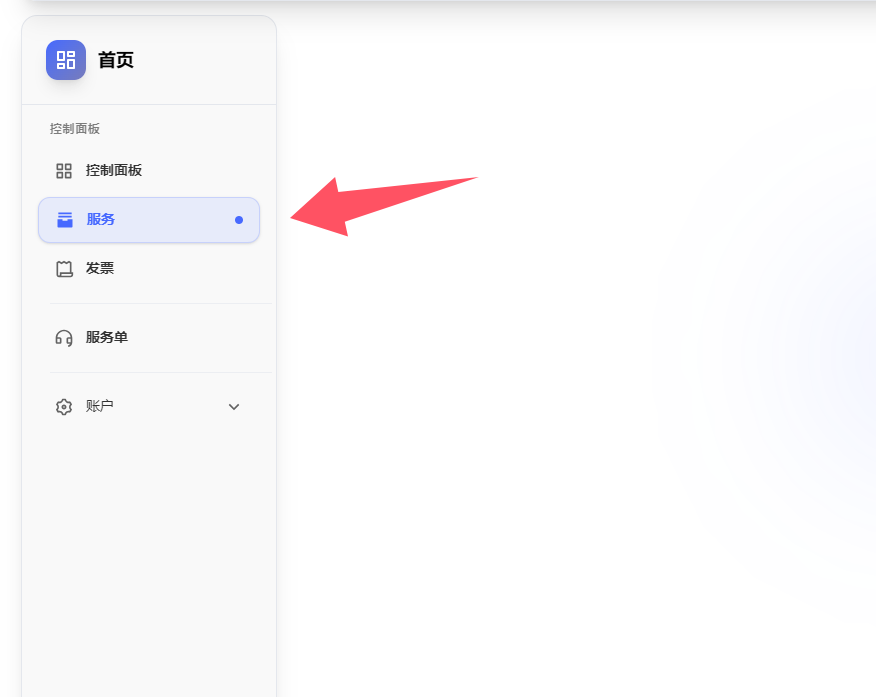
Step 1: Click "Services" in the control panel on this website
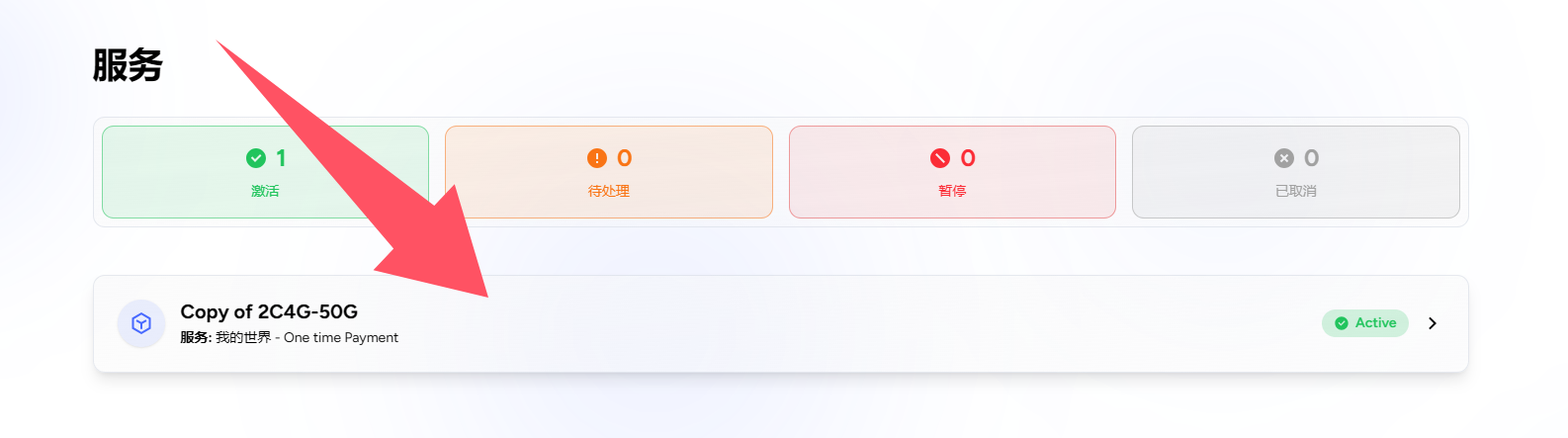
Step 2: Click your Minecraft server under Enabled Services
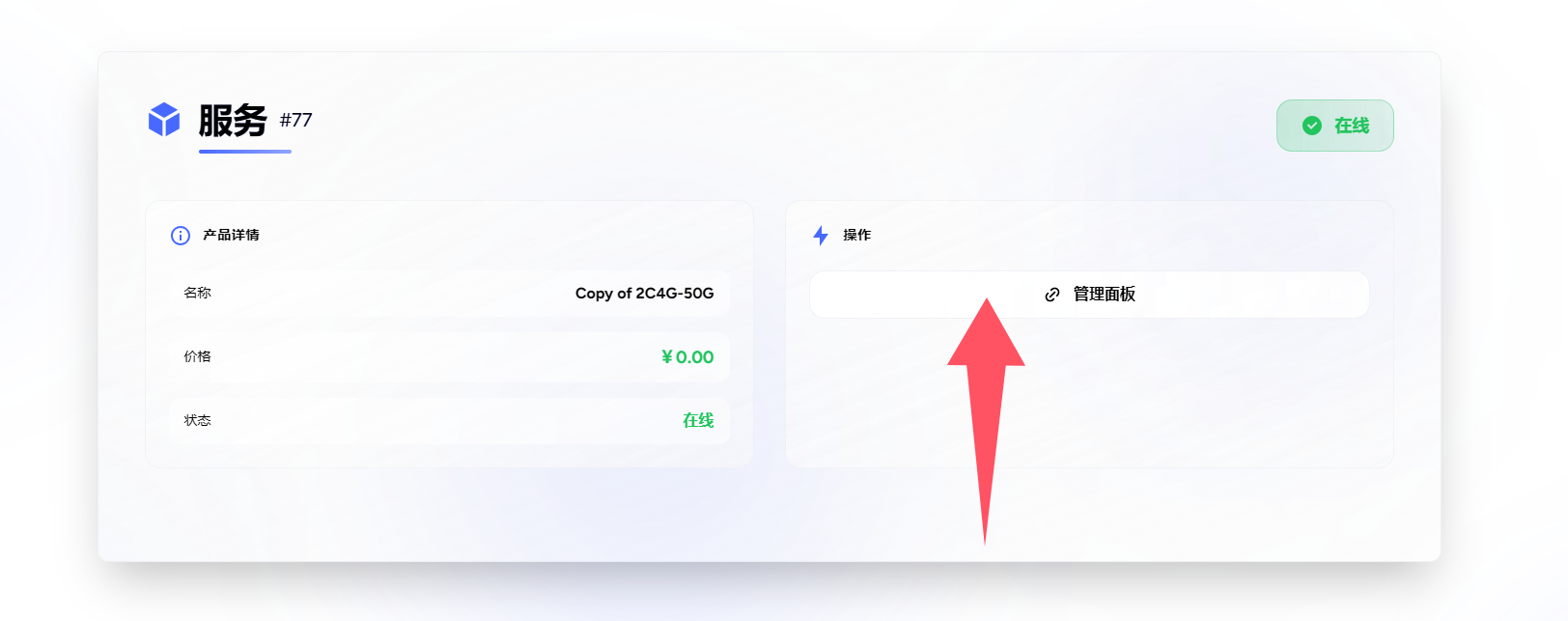
Step 3: Click the "Management Panel" button under your Minecraft service
Step 4: Once the management panel page opens, the first thing you'll see is the terminal console
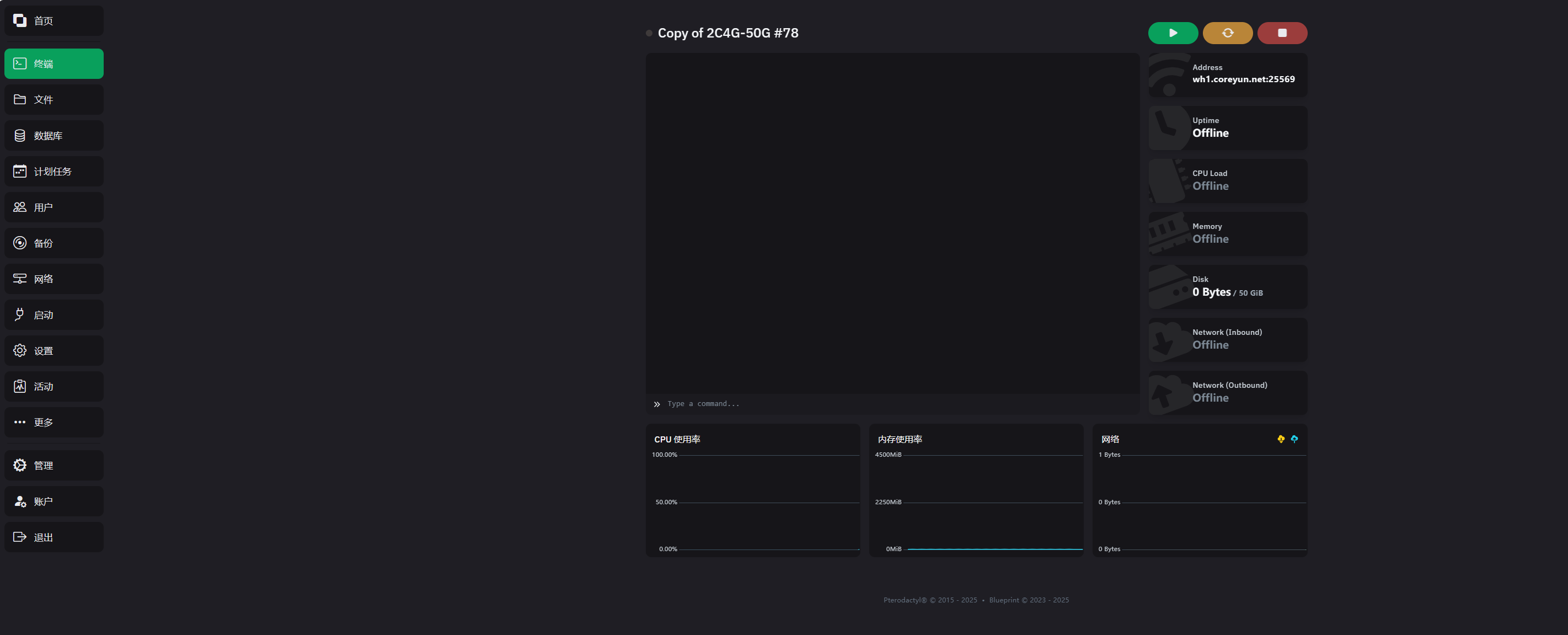
The interface shows basic server information such as the server connection address and CPU and memory usage. Below is a walkthrough of how to use each of the handy features:
1. "Startup" Command Management
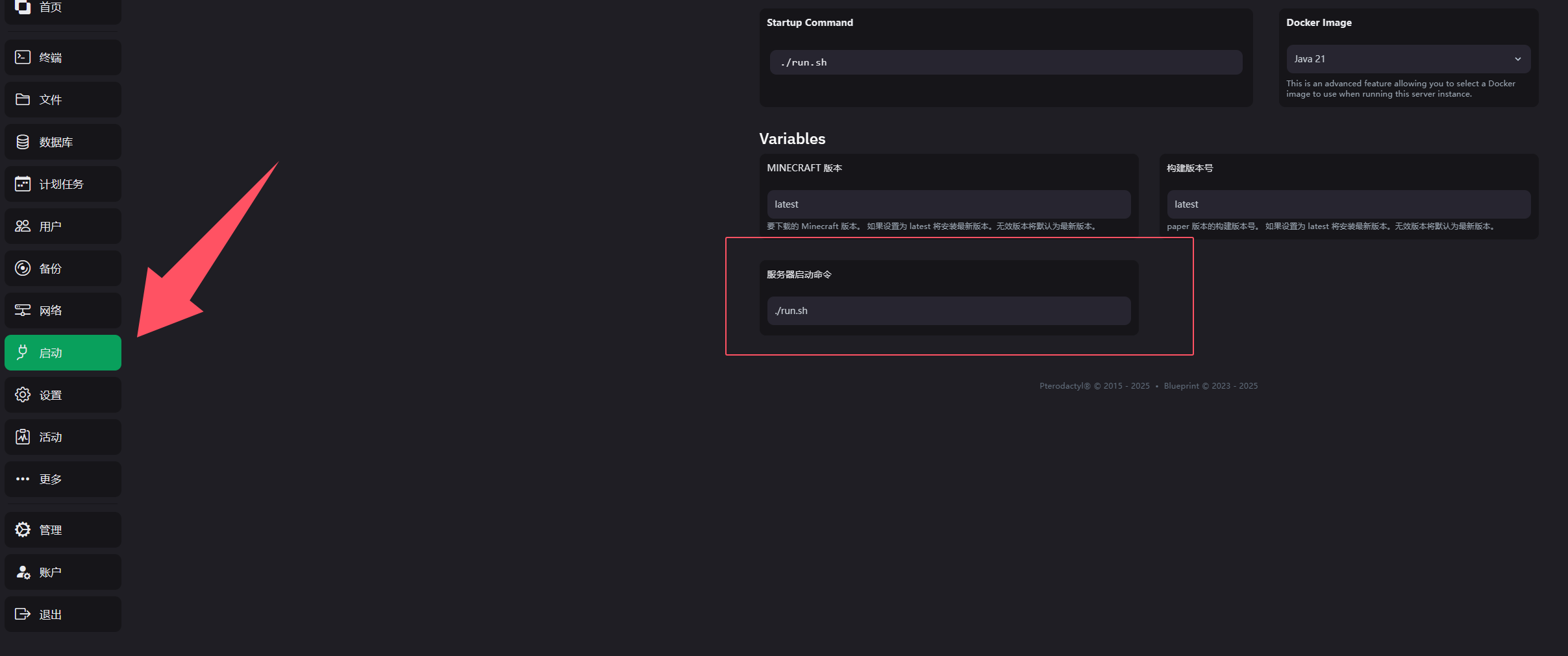
Click the "Startup" button on the left to open the startup editing screen. In the top-right corner you'll see the Java version the server runs on; normally it switches automatically based on the core you installed.
The boxed field is the server's startup command, which defaults to the "run.sh" file in file management. You can edit the "run.sh" startup file yourself, or simply change the startup command directly to launch the server.
2. One-Click Modpack Installation
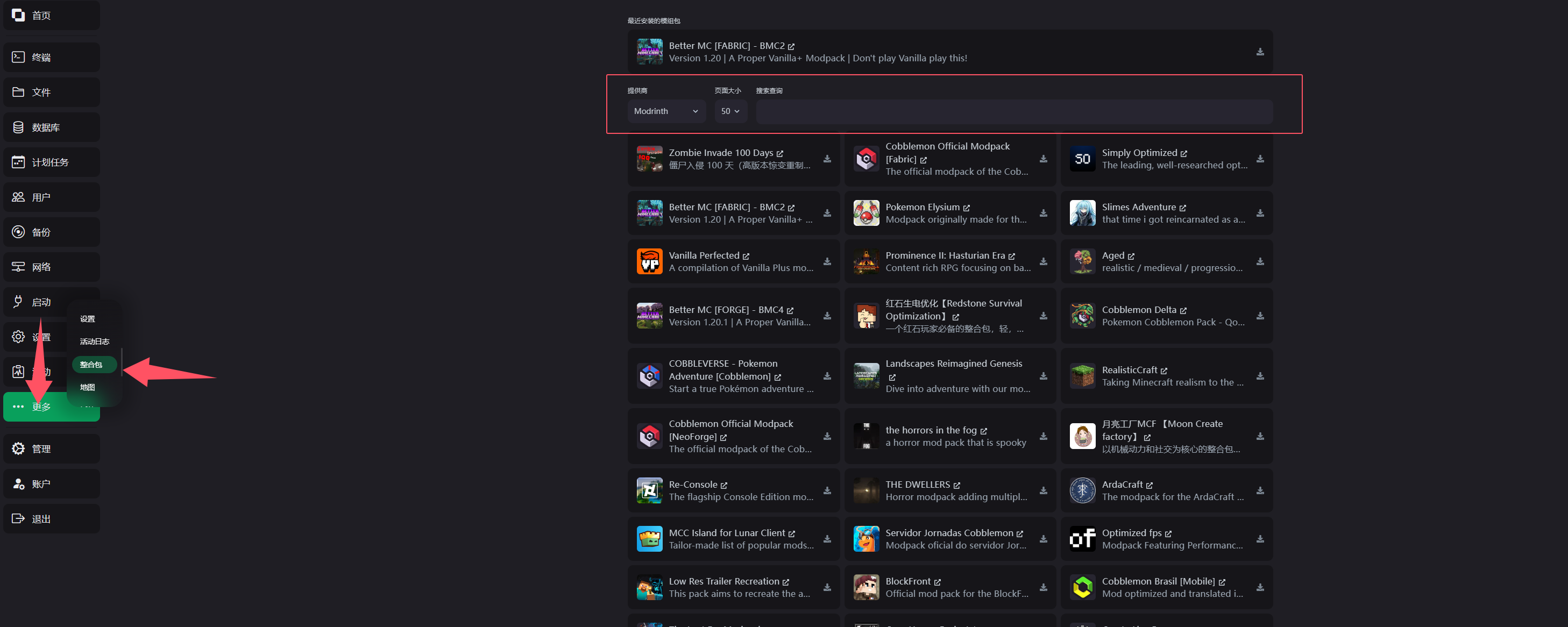
First click the "More" button in the left sidebar, then click the "Modpack" option in the pop-up menu to open the modpack screen. By default it shows the Modrinth modpack list. You can use the "Provider" selector to choose which website the modpacks come from. The arrow at the top-left of the page is the provider dropdown; the boxed area contains the page size and the search box (page size is how many modpacks are displayed per page).
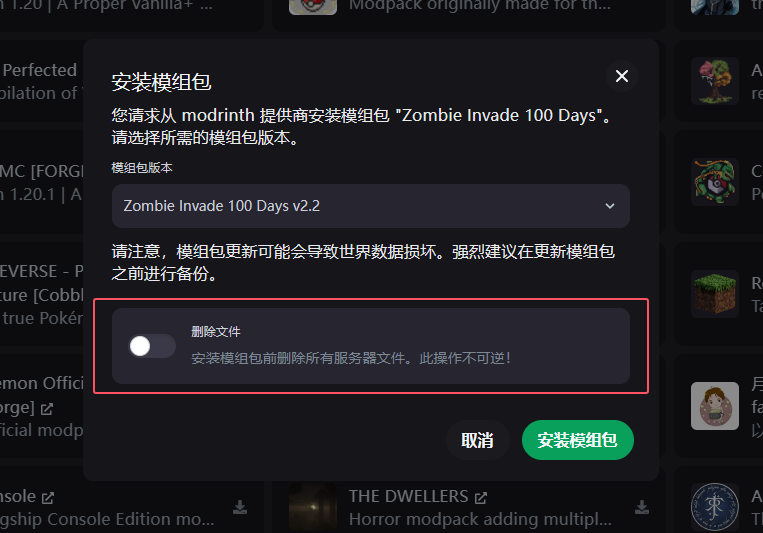
Clicking the download button to the right of a modpack opens a download dialog where you can choose the modpack version and whether to delete the files already on the server.
If the modpack won't start in the terminal after downloading, it is usually a startup logic issue (this can differ from modpack to modpack). Go to Files and check whether a run.sh file exists; if it does not, you will need to change the startup command (covered in section 1 above). If you are not sure how to change it, you can use the code template below:
java -server -Xms1024M -jar server.jar noguiIf the server still does not work properly, please contact customer support.
3. Mod and Plugin Installation
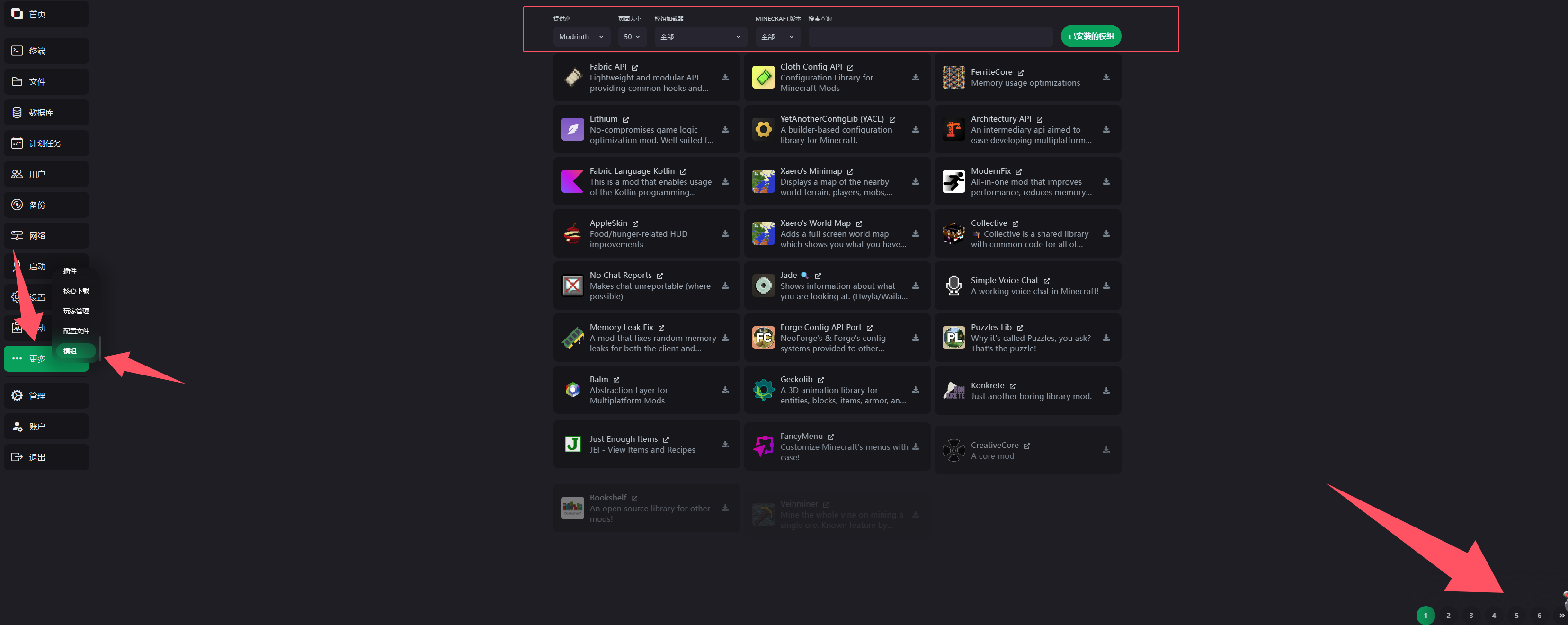
First click the "More" button in the left sidebar, then click the "Plugins" or "Mods" option in the pop-up menu to open the download screen. Once it opens, the boxed area lets you choose which website the mods or plugins come from; how many resources are shown per page; the runtime engine for the mod or plugin (Forge, Fabric, ...); and the Minecraft version the mod or plugin targets; as well as the search box, the mods or plugins already installed, and the paging buttons in the bottom-right corner.
4. One-Click Server Core Installation
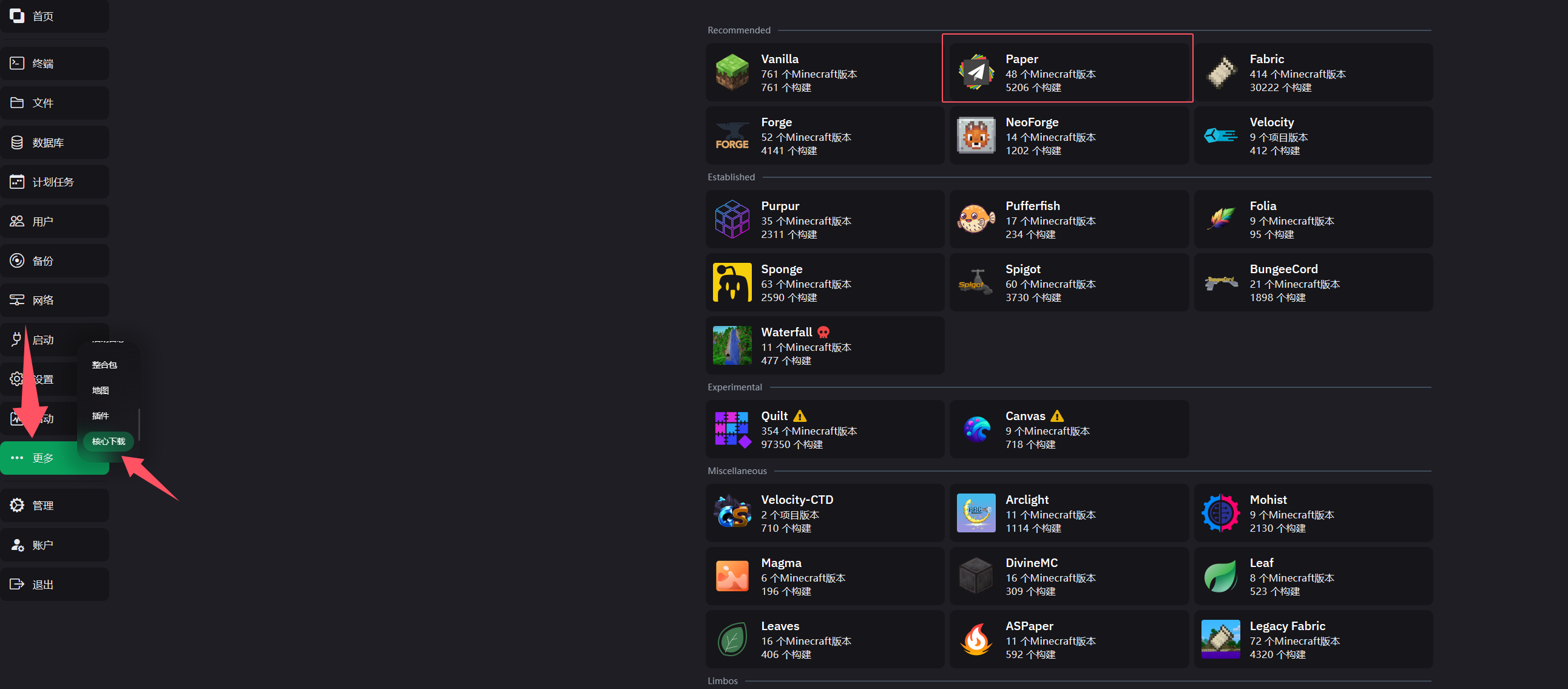
Click the "More" button in the left sidebar, then click the "Core Download" tab in the pop-up menu. You will see plenty of cores to choose from; click one to continue (we use Paper as the example here).
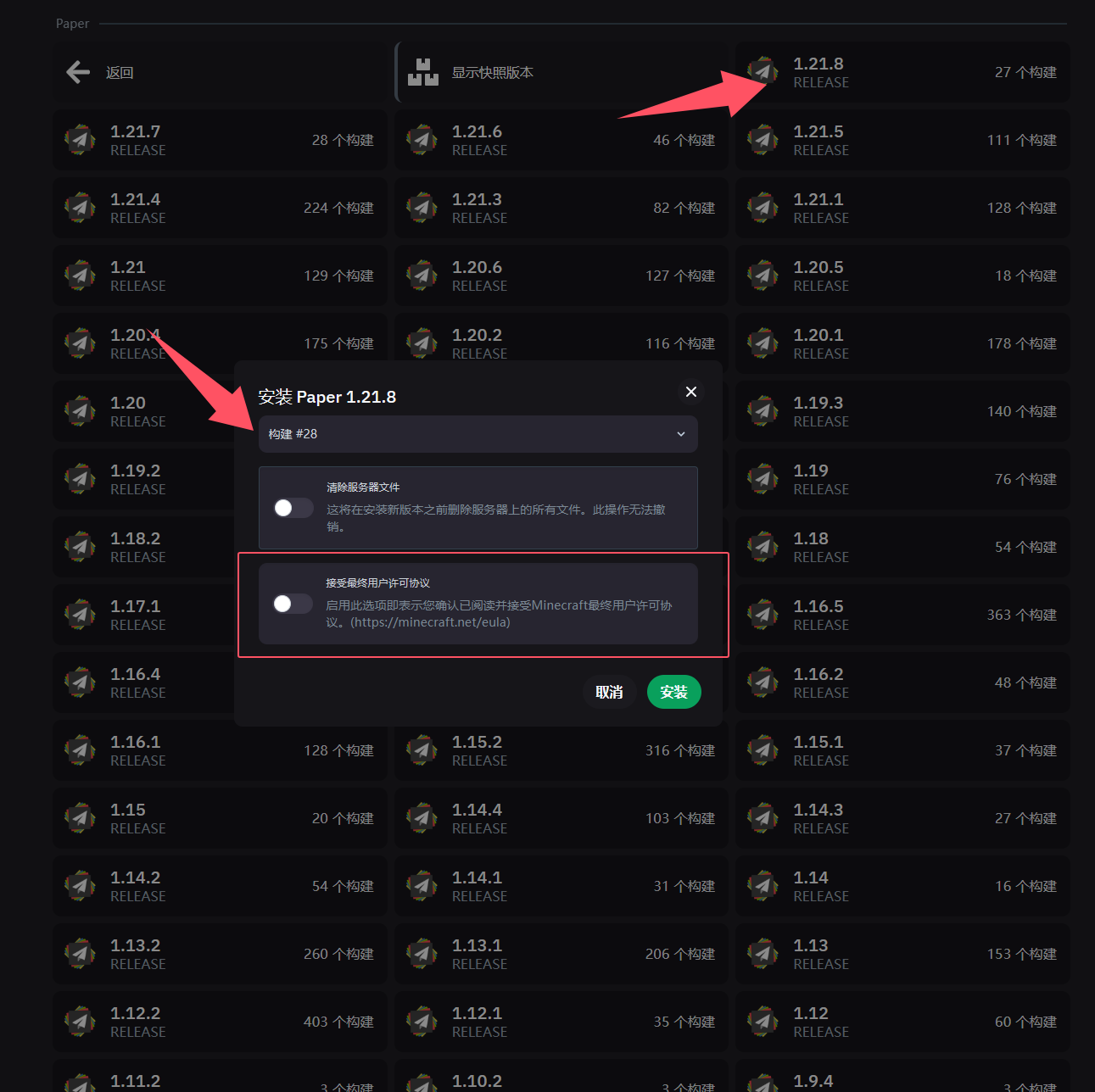
Choose the game version of the core you want to install, then click it to open the core installation screen. On this screen you can pick the build of the core for that game version, choose whether to clear the server files, and automatically accept the EULA.
5. Graphical Player Management
Click the "More" button in the left sidebar and select the Player Management tab. At the top of the screen you can choose which set of players to manage: "OP List", "Whitelisted Players", "Banned Players", and "Offline Players". Click the "+" button below to add a player of that type. Enter the player's name to add them to that list.
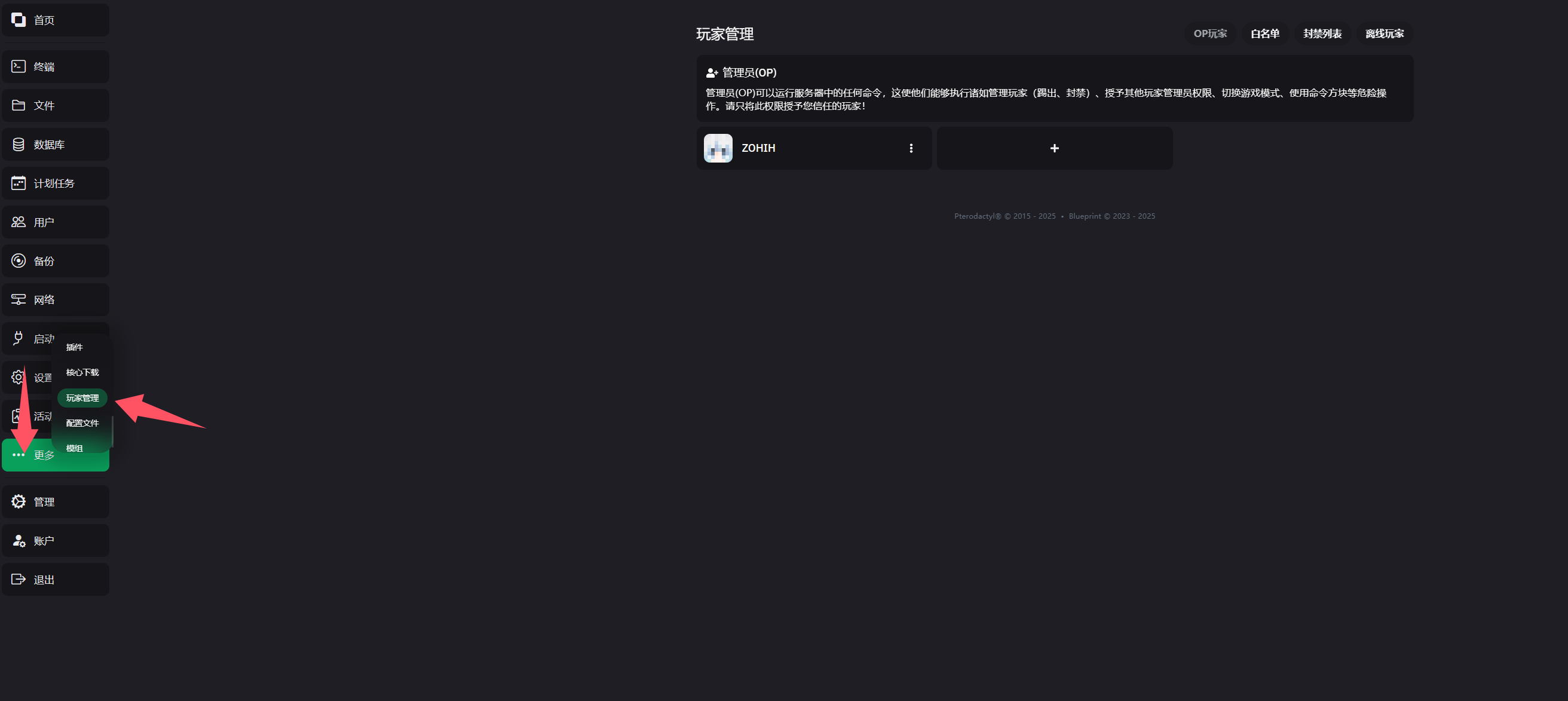
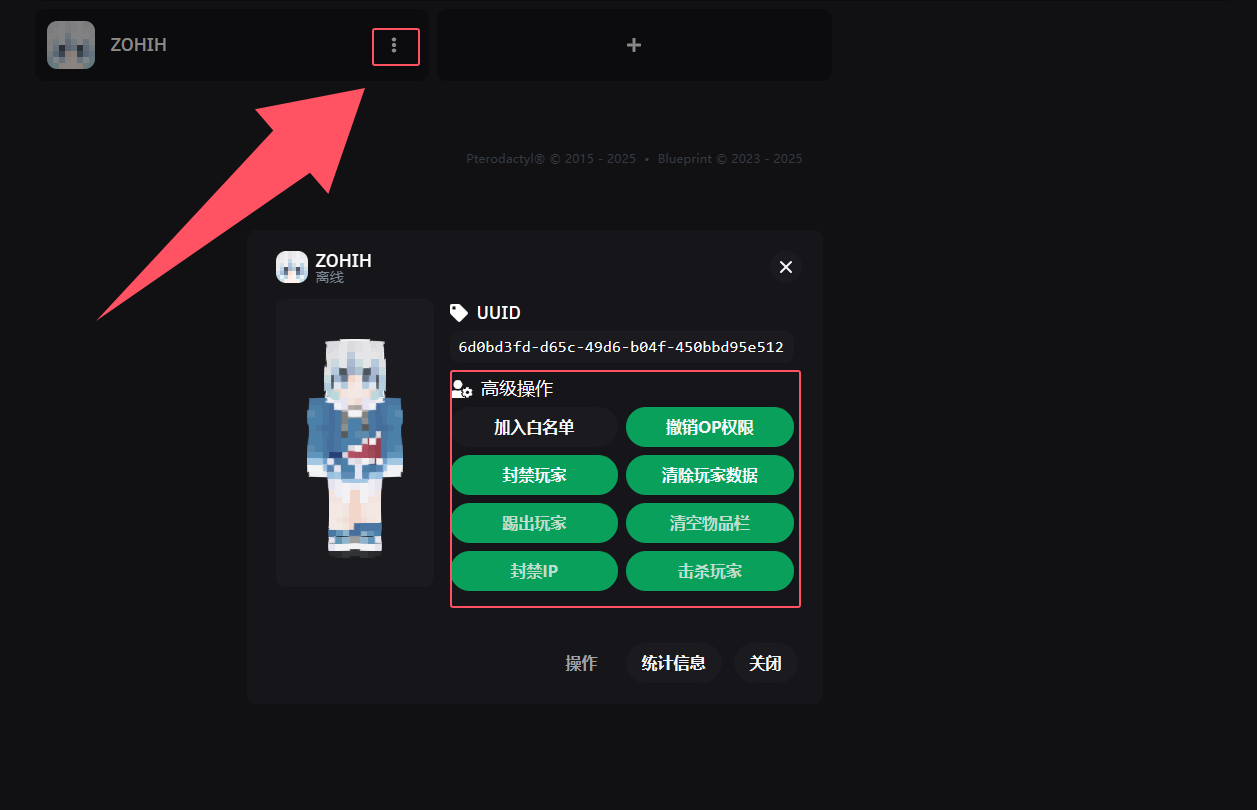
Once the player has been added, click the three dots next to the player to access more actions, as shown below. The other player management features work the same way, so this knowledge base will not repeat them.